Getting Started
For anyone starting with Silver Bullet 3: what it is, starting it for the first time, the screen, a five-minute tour from adding a file to correcting an answer, and the trial and licence. This guide covers release 3.0.0-rc.7, a release candidate.
What Silver Bullet 3 is
Silver Bullet answers questions about your sales data in plain words: “net sales by region last quarter”, “who’s slipping?”, “top 10 customers this FY”. Each answer comes back as a headline in a sentence, a chart, a table you can copy into Excel, and a short note on how it was worked out.
It is a desktop app for one person, on your own computer. You use it in your browser, but only your computer can reach it, and everything it keeps stays in a folder on your computer.
There is one chat for everything. Your data can be:
- files: Excel, CSV, TSV, Parquet and text files, loaded once and checked for problems before you ask about them;
- databases: PostgreSQL, MySQL, MariaDB, SQL Server and Oracle, read live through a read-only account.
Both kinds are data sources. You ask about them the same way, in the same chat. There are no separate “online” and “offline” halves as in Silver Bullet Suite 2.
Everything you set up is in one admin area: data sources, the data dictionary (your business words), your corrections, the AI model, health and logs, and the licence. You are the only person using it, so every button in these guides is yours.
Three things to know from the start:
- It never changes your data. A question such as “delete the cancelled orders” is refused before anything is asked of the data. Databases are read through a read-only account; a loaded file is a copy, and your original file is not changed.
- The AI model never sees your rows. It sees your question and the names of tables and columns. Query results never go to it, and values of columns marked as personal data are never sampled or sent.
- You can always see how it read your question, and change it with a tap. If the answer is still not what you meant, No, fix it corrects it in three taps.
Installing
The Installation Guide lists the packages for
macOS, Windows and Linux, what your computer needs, and how to set up the
AI model. In short: on a Mac, drag Silver Bullet 3.app to Applications
(or anywhere you like); on Windows and Linux, unzip the package into a
folder of your own.
Silver Bullet 3 uses port 8930 (or another free port if that one is busy) and its own data folder. Silver Bullet Suite 2 (port 8920) is not touched and can keep running beside it. Nothing is imported from Suite 2: Silver Bullet 3 starts fresh.
Starting Silver Bullet
The first time
| What to start | |
|---|---|
| macOS | Silver Bullet 3.app. Double-click it. |
| Windows | SilverBullet.exe in the folder you unzipped. |
| Linux | SilverBullet in the folder you unzipped, from your file manager or a terminal (./SilverBullet). |
Silver Bullet is signed by Govirang, not by Apple or Microsoft, by design (clause 10A of the End User Licence Agreement). So the first time, your computer may warn you that it cannot check the program:
- macOS says it cannot check the app for malicious software. Click Done (not Move to Trash), open System Settings → Privacy & Security, scroll down to the message about Silver Bullet 3, click Open Anyway and confirm with your password or Touch ID. (On macOS 14 Sonoma or earlier you can instead right-click the app, choose Open, then Open again; macOS 15 Sequoia and later no longer offer this.) You only do this once.
- Windows says “Windows protected your PC”. Click More info, then Run anyway. You only do this once.
What you see
There is no window. Your browser opens on Silver Bullet’s home page, already signed in. There is no user name and no password: Silver Bullet opens the browser with a one-time sign-in link, which works once, for two minutes.
The first time, a Before you start page comes first. It shows the End User Licence Agreement, the Terms of Service and the Privacy Notice, one tab each. Read them, tick I have read and agree… and choose Agree and continue. Nothing else works until you do: not the licence page, not the welcome. Decline explains that Silver Bullet cannot be used without your agreement; you can read them again at any time. Silver Bullet keeps the date you agreed on your computer, and asks again only when one of the documents changes. You can open all three later from About Silver Bullet in your account menu.
Silver Bullet puts an icon in the menu bar (macOS), the taskbar’s notification area (Windows; it may be hidden behind the ^ arrow) or the system tray (Linux desktops that show status icons). Click it for its menu:
| Menu item | What it does |
|---|---|
| Open Silver Bullet | Opens Silver Bullet in your browser again, signed in. |
| Copy sign-in link | Puts a new one-time link on the clipboard, for when the browser did not open. Paste it into any browser on this computer. |
| Show data folder | Opens the folder where your sources, files and logs are kept. |
| Copy licence code | Puts this computer’s licence code on the clipboard, to send for a licence key. |
| Silver Bullet <version> | The version you are running (greyed out). |
| Quit Silver Bullet | Stops Silver Bullet. |
Closed the browser tab? Click Open Silver Bullet in the icon’s menu, or start Silver Bullet again: starting it while it runs does not start a second copy, it opens your browser on the one already running.
A page says “Open Silver Bullet again”? The sign-in link was already used, or is more than two minutes old; or Silver Bullet was stopped and started again (that signs every page out); or the tab was not opened by Silver Bullet (a bookmark, or the address typed in). Open Silver Bullet again from the icon; it signs you in by itself.
Stopping. Choose Quit Silver Bullet in the icon’s menu, or simply close the browser. Silver Bullet stops by itself about a minute and a half after the last Silver Bullet page closes, or 10 minutes after the last sign of any open page (for example after the browser crashed). It never stops while a file is being loaded, and a computer that was asleep does not count as closed. Your work is saved as you go, so stopping loses nothing.
Linux without a tray. If your desktop shows no status icons, Silver Bullet uses the terminal instead: press Enter in it to open the browser again, Ctrl+C to stop.
Just you
Your account menu (the round button at the top right) says Just you, on this computer. It has Activity & trust (your questions, and exactly what was sent to the AI model) and About Silver Bullet (the version and the licence). There is no password to change and nothing to sign out of.
To pass an answer on, copy a table or a chart, download Excel, CSV or a picture, download a board as a PDF, or download a brief as a PDF, PowerPoint or Word file, and send it however you like.
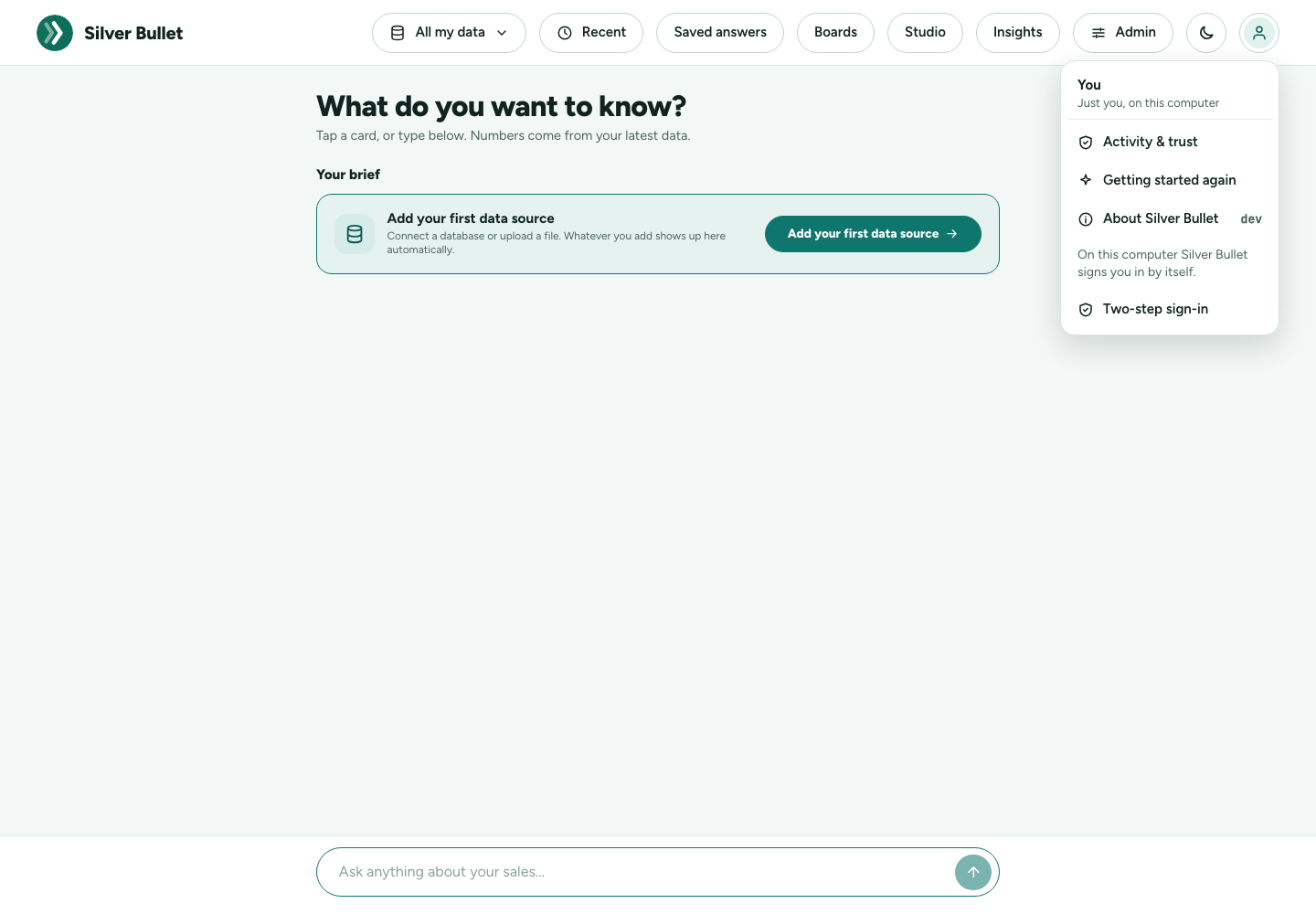
Admin has Data sources, Data dictionary, Your corrections, AI model, Health and logs, Components, Licence, Network and firewall and Activity & trust. There is no sample data inside Silver Bullet: you start by adding your own file or database (step 1 of the tour below).
Where your data is kept
| Data folder | |
|---|---|
| macOS | ~/Library/Application Support/SilverBullet3 |
| Windows | %LOCALAPPDATA%\SilverBullet3 |
| Linux | ~/.local/share/silver-bullet-3 |
Each account on a shared computer has its own folder, readable by that account only. Replacing the program with a newer version keeps everything. Silver Bullet backs itself up into that folder every day it runs (the newest 7 kept); the Administration Guide says how to restore one, and why to copy them elsewhere too.
The screen at a glance
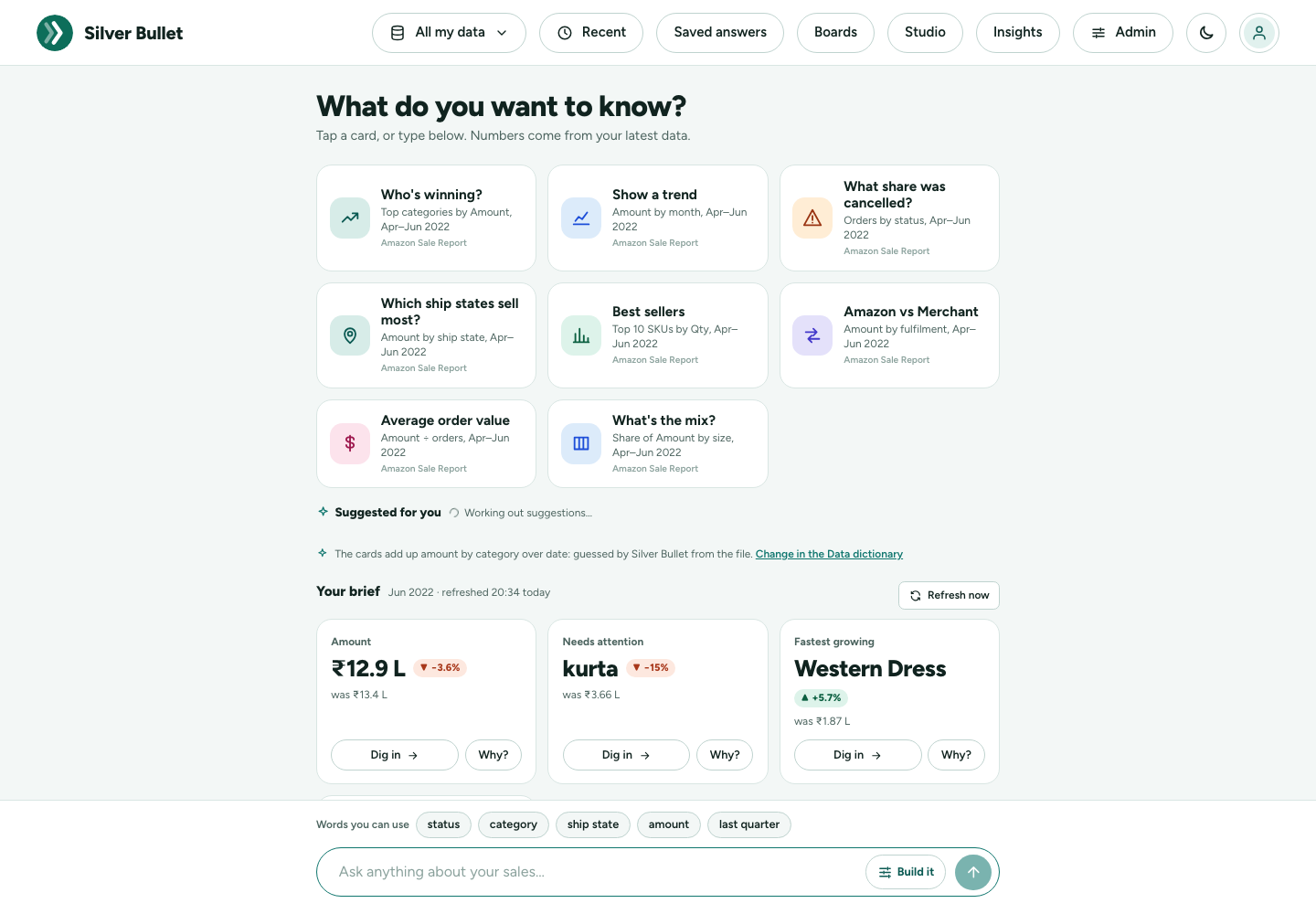
Along the top:
- The data picker: All my data, or one data source.
- New question (on any page but home) and Recent: your recent conversations.
- Saved answers, Boards, Studio and Insights. Studio is where you build a dashboard yourself; it shows for people who may make boards.
- Admin. A number on it says how many of your corrections are waiting to be checked.
- The moon or sun button switches between light and dark.
- The round button opens your account menu.
In a narrow window, such as a phone-sized one, the top bar shrinks to icons (the data picker, Recent, the theme and your account), and Saved answers, Boards, Studio, Insights, Admin and Help move into the account menu.
A five-minute tour
1. Add some data
With no data yet, the home page offers Add your first data source. To try Silver Bullet with a file:
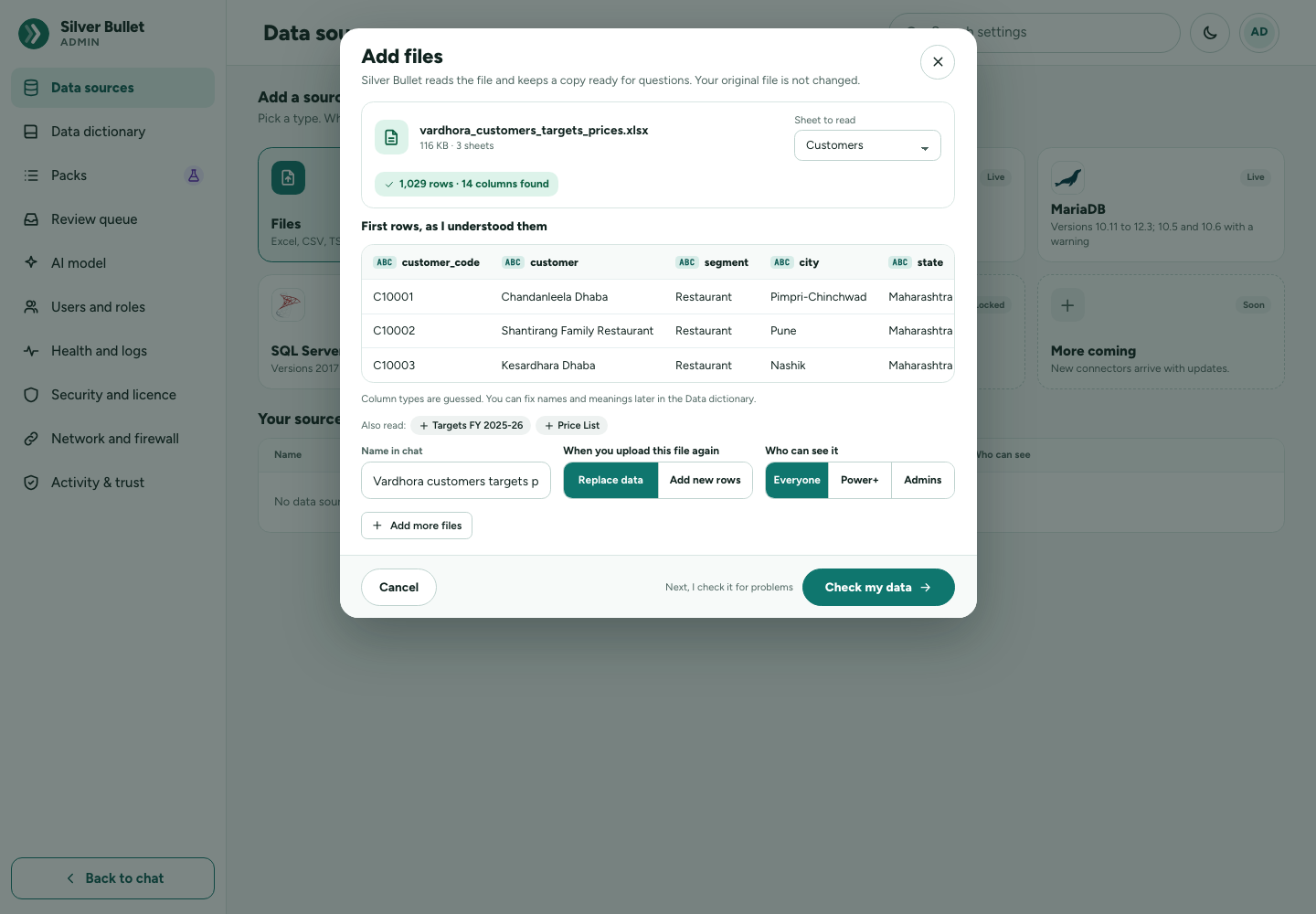
- Open Admin → Data sources and pick Files under Add a source.
- Drop a file in, or choose a file. If you have no file of your own
at hand, use the Test Kit’s sales register,
vardhora_sales_register_FY2025-26.csv, in thefilesfolder of the Test Kit download (SilverBullet3-TestKit-3.0.0-rc.7.zip; see the Test Kit guide). - Check the First rows, as I understood them, give it a Name in chat, then press Check my data.
- Decide anything it asks about (or press Use recommended for all …), then Add to Silver Bullet.
- Press Ask about it in chat.
Connecting a database takes a little longer: the Administration Guide walks through it.
2. Ask a first question by tapping a card
The home page asks What do you want to know? and offers six to eight cards chosen by what your data holds and worded with its own names. For a sales file, for example: Who’s winning? (top categories by amount), Show a trend, What share was cancelled?, Which states sell most?. Tap Who’s winning?.
Tapped questions are answered straight away, without waiting for the AI model. A typed question can take 15 to 30 seconds with a local model.
3. Read the answer
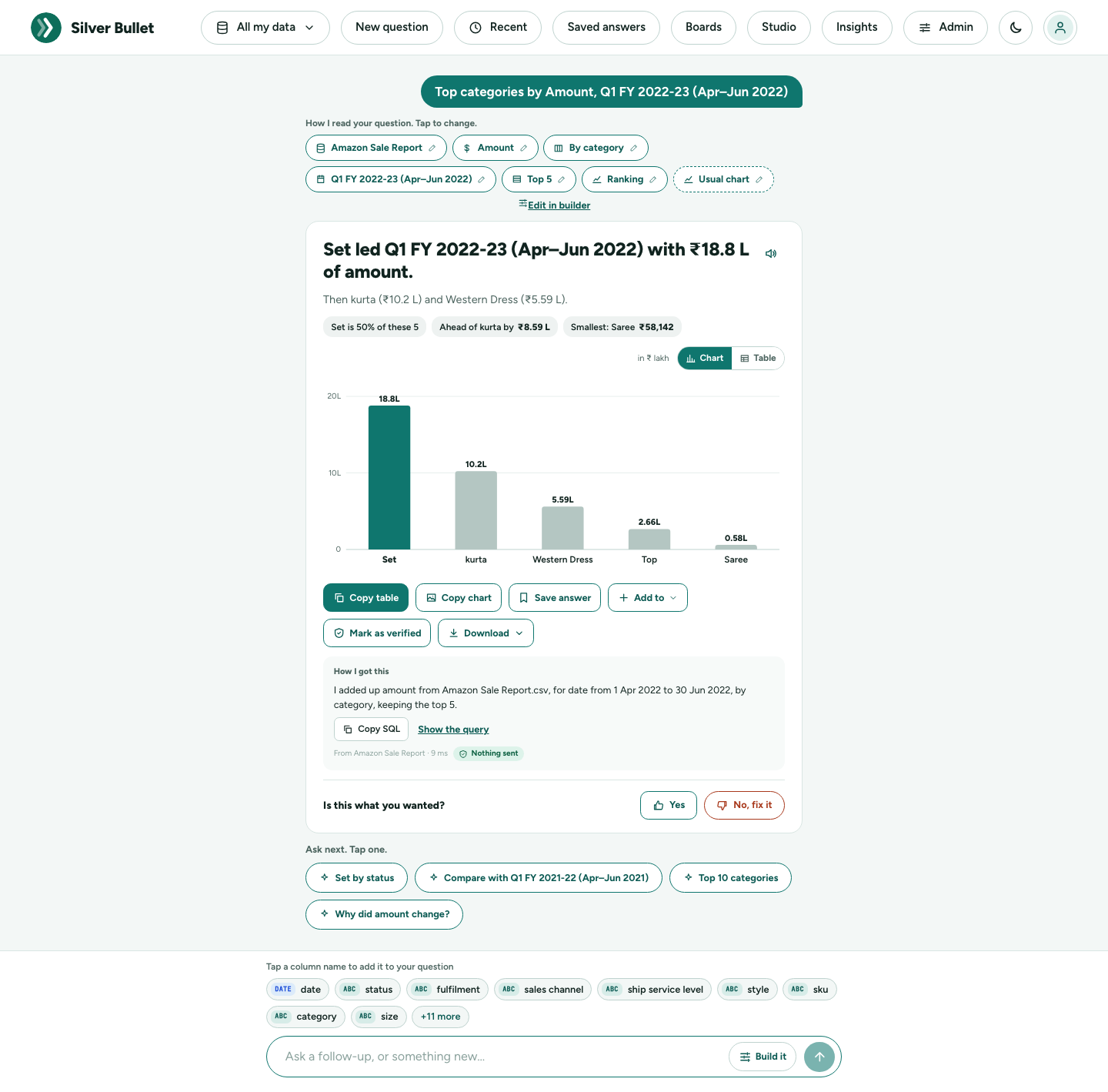
From the top:
- How I read your question. Tap to change. Each chip is one part of how Silver Bullet understood you: the data, the figure, the split, the period, any filter. Tap one to change it; the answer is worked out again at once.
- The headline says the answer in one sentence, with a supporting line and a few short findings under it.
- The chart (or Table, with the switch beside it). Money is in ₹, in lakh or crore; a period like FY 2025-26 is April to March.
- The actions: Copy table, Copy chart, Save answer, Add to a board or a brief, Download and Mark as verified.
- How I got this says in words what was added up and filtered, with Copy SQL and Show the query for the exact query that ran.
- Ask next. Tap one. offers the obvious next questions.
4. Say “No, fix it”
If the answer is not what you meant, press No, fix it under Is this what you wanted?:
- Say what went wrong, for example Wrong time period.
- Pick what you meant from the readings offered, each with its real figure.
- See the fixed answer, marked Not yet reviewed.
The corrected answer is in use for you at once, and it is listed under Admin → Your corrections. Checking it there (the safety check, then Make it a verified answer) teaches Silver Bullet, so the same question in other words is answered your way too. If the answer was right, press Yes: that helps too.
5. Open a ready-made dashboard in Studio
Press Studio at the top. Silver Bullet offers starter dashboards made from your data, such as Sales overview, each already following the 15 dashboard rules. Pick who it is for (for example Sales), then open one. The controls are on the left and the dashboard on the right: add a tile with the same drop-downs as Build it, and the Design check tab says which rules a board breaks and fixes them in one click. Share the board as PowerPoint, Word or PDF, or make a brief from it. The User Guide has the details and the 15 rules.
The trial and the licence
Silver Bullet runs a 14-day trial from its first start, then needs a licence for this computer. Buy it from inside the app: Admin → Licence → Buy a licence (or the trial’s banner), choose Monthly or Yearly, and pay at the checkout that opens in your browser. The key is installed by itself within a minute, and e-mailed to you; there is no account to make, and no refunds once the key is delivered. Lost the key, or a new computer: Get my key and Move to this computer on the same page. A key can also be pasted under Enter a licence key. One licence includes every data source plugin. The key is checked on your computer; when the trial or licence ends, every page shows Licence needed until a key is installed, and your work is kept.
Where to go next
| Guide | For |
|---|---|
| User Guide | everything about asking and answers: chips, charts, saved answers, boards, Studio and the 15 dashboard rules, briefs, downloads |
| Installation Guide | packages, operating systems, the AI model, settings |
| Administration Guide | data sources, the data dictionary, your corrections, the AI model, backups |
| Learning Engine | how corrections and verified answers make Silver Bullet better |
| Troubleshooting Guide | every error code and what to do |
| Security and Privacy | what is stored, what leaves your computer, what is checked |
| Test Kit | sample data and questions with known answers |
| Release Notes | what is new, what is not tested, what is not in this release |
Every guide is also inside Silver Bullet, for the version you run, with a search box: press ? in the top bar (or Help in your menu) and it opens in a new tab. It needs no internet and no sign-in.
When something is not right
Error messages carry a code (SB3-…) and often a Reference. Note both, with the time: together they point to the exact event in the log (Admin → Health and logs). The Troubleshooting Guide lists every code. When you contact support, send the code, the reference and the time.
Support: ______________________