Installation Guide
How to install Silver Bullet 3.0 (a release candidate; the version is in the Release Notes) on your own computer, set it up, keep it backed up, upgrade it and remove it. Silver Bullet is a desktop app for one person: it runs on your computer, opens in your browser and is reachable from that computer only. For what you do once it runs, see Getting Started and the Administration Guide.
What you need
Operating systems
| Platform | Package | Supported |
|---|---|---|
| macOS 11 or later, Apple silicon | macos-apple-silicon |
yes (Silver Bullet 3.app) |
| macOS 11 or later, Intel | macos-intel |
yes (Silver Bullet 3.app) |
| Windows 10 and 11, x64 | windows-x64 |
yes |
| Linux x64 (glibc 2.31 or later) | linux-x64 |
yes |
| Linux arm64 (glibc 2.31 or later) | linux-arm64 |
yes |
Linux: Ubuntu 20.04 or later, Debian 11 or later, RHEL / Rocky Linux / Oracle Linux 9 or later, or another distribution with glibc 2.31 or later. RHEL 8 and its relatives are not supported (glibc 2.28).
Windows releases older than Windows 10, and 32-bit Windows, are not supported.
Windows: Silver Bullet 3 is tested on Windows 11. The test machine is Windows 11 on Arm, where the x64 program runs through Windows’ x64 emulation; on x64 PCs it is expected to work the same.
Browsers
You use Silver Bullet in your browser. Nothing else is installed for it.
Google Chrome, Microsoft Edge, Mozilla Firefox or Apple Safari.
A current version of any of these, on the computer Silver Bullet runs on. Internet Explorer is not supported. The pages need JavaScript. “Read it to me” uses the browser’s own speech; voice input, when an administrator turns it on, needs a browser with speech recognition (Chrome sends the audio to Google).
Hardware
- Silver Bullet itself: One program, using about 60 MB of memory when idle. Most memory is used while a file is checked and loaded: the whole file is read into memory and every value is checked. Measured in October 2026 (
packaging/memory-test.sh): the Test Kit’s four files took up to about 650 MB; a 190 MB CSV of 740,000 rows and 29 columns took up to about 3.7 GB while it was checked and loaded, given back within seconds once it was added; answering questions from it took almost nothing more. Allow about 4 GB of free memory for each file near the upload limit (200 MB) loaded at the same time — about 20 times the file’s size — and more for wider files. - Disk: The program is about 100 MB. The data folder grows with the files you load (kept in DuckDB, compressed), plus the temporary result area (at most 512 MB by default,
SB_RESULT_MAX_MB), the rows each file import set aside, and the logs (at most about 60 MB). Databases are queried where they are: nothing is copied from them. Plan for at least 3 times the size of the files you expect to load, plus the automatic backups in the data folder (7 by default, each about the size of app.db and the loaded files). - The local AI model:
qwen3-coder-next(the default, and the model this release was measured with) needs about 64 GB of memory or a GPU with similar memory;codestral:22bruns in 16 GB but is wrong more often.nomic-embed-text, used to match questions to verified answers by meaning, is small (under 1 GB). With a cloud provider an ordinary computer is enough.
Network
Silver Bullet makes only the connections below, all from your computer. Nothing needs to reach your computer from outside.
| From | To | Port (default) | Purpose |
|---|---|---|---|
| Your browser, on this computer | Silver Bullet | 8930, or a free port when it is busy | The web interface, on 127.0.0.1 only: never reachable from the network, so no inbound firewall rule is needed. |
| Silver Bullet | Each database added as a data source | 5432 PostgreSQL, 3306 MySQL / MariaDB, 1433 SQL Server, 1521 Oracle | Queries, through a read-only login. |
| Silver Bullet | SQL Server sign-in, when chosen | 443 login.microsoftonline.com (Microsoft Entra ID), 88 TCP/UDP (Kerberos: the domain’s KDCs), 1434 UDP (SQL Server Browser, for a named instance) | The SQL Server login’s sign-in; a named instance’s port. |
| Silver Bullet | Ollama or LM Studio, if not on the same machine | 11434 Ollama, 1234 LM Studio | The answering model. |
| Silver Bullet | A cloud model provider, if you choose one | 443 | The answering model. |
| This computer | Its DNS servers and time server | 53 TCP/UDP, 123 UDP | Names of the databases and services; a correct clock (the system’s own services). |
Nothing else is contacted: there is no licence server, no update check and no telemetry. A licence key is checked on the computer itself.
See Connecting to your databases for what to ask your network team.
Supported databases
Silver Bullet reads PostgreSQL, MySQL, MariaDB, SQL Server and Oracle databases where they are, through a read-only account. The table says which versions were tested for this release and which are expected to work.
Last verified 30 September 2026. The Data sources page shows the tested versions on each database’s card, and a connection test says which of these it found.
- Tested — The safety tests passed on it — a login that can write is refused, every query runs read-only with a time limit, and a query that would read too much is refused before it runs. Where it says so, the answers were also checked against known results.
- Tested — works with a warning — Tested, and it works, but something about it deserves attention — for example the vendor no longer supports that version. The advice says what to do.
- Expected to work — not yet tested — Not yet tested. It is expected to work for the reason given (usually: the same database engine and protocol as something tested). Test the connection, try some questions, and tell support what you find.
- Not supported — It does not work, it is refused, or it cannot be vouched for. The advice says what to use instead.
| Database | Version | Status | Vendor support ends | Evidence and advice |
|---|---|---|---|---|
| PostgreSQL | 19 and later | Expected to work — not yet tested | — | The same database engine and protocol as the tested versions. Not yet tested: PostgreSQL 19 is still in beta, and joins the test bed when it is released. Test the connection and try a few questions; tell support if anything looks wrong. |
| PostgreSQL | 18 | Tested | Nov 2030 | Safety tests on the local test bed (Docker, the vendor’s own image), before every release. The core test target: seeded, safety-tested and answer-checked. |
| PostgreSQL | 17 | Tested | Nov 2029 | Safety tests on the local test bed (Docker, the vendor’s own image), before every release. |
| PostgreSQL | 16 | Tested | Nov 2028 | Safety tests on the local test bed (Docker, the vendor’s own image), before every release. |
| PostgreSQL | 15 | Tested | Nov 2027 | Safety tests on the local test bed (Docker, the vendor’s own image), before every release. |
| PostgreSQL | 14 | Tested | 12 Nov 2026 | Safety tests on the local test bed (Docker, the vendor’s own image), before every release. PostgreSQL 14 reaches its end of life on 12 November 2026 and will be dropped in the first Silver Bullet release after that date: plan an upgrade. |
| PostgreSQL | 13 and older | Not supported | 13: Nov 2025 | Past the PostgreSQL community’s end of life; not tested. Upgrade to PostgreSQL 15 or later. An older server may still connect; the connection test then says it is out of support. |
| MySQL | 9.8 and later innovation | Expected to work — not yet tested | — | The same database engine and protocol as the tested versions. Innovation releases are each supported by Oracle only until the next one; not yet tested. For production, prefer an LTS line: 8.4 or 9.7. |
| MySQL | 9.7 LTS | Tested | Apr 2031 (premier) | Safety tests on the local test bed (Docker, the vendor’s own image), before every release. The core test target: seeded, safety-tested and answer-checked. |
| MySQL | 9.0 – 9.6 innovation | Not supported | — | Innovation releases, each supported only until the next one; all have been replaced. Not tested. Upgrade to 9.7 LTS. |
| MySQL | 8.4 LTS | Tested | Apr 2029 (premier) | Safety tests on the local test bed (Docker, the vendor’s own image), before every release. |
| MySQL | 8.3 and older (including 8.0) | Not supported | 8.0: Apr 2026 | Past Oracle’s end of life; not tested. Upgrade to 8.4 LTS or 9.7 LTS. |
| MariaDB | 12.3 LTS | Tested | Jun 2029 | Safety tests on the local test bed (Docker, the vendor’s own image), before every release. |
| MariaDB | 11.8 LTS | Tested | Jun 2028 | Safety tests on the local test bed (Docker, the vendor’s own image), before every release. 41 of 41 answer-check questions right (qwen3-coder-next); replica detection tested. |
| MariaDB | 11.4 LTS | Tested | May 2029 | Safety tests on the local test bed (Docker, the vendor’s own image), before every release. On Suite 3’s own test bed too (packaging/mariadb-bed.sh, 8 Oct 2026): the safety tests, the add-database checks and the Test Kit’s answers. |
| MariaDB | 10.11 LTS | Tested | Feb 2028 | Safety tests on the local test bed (Docker, the vendor’s own image), before every release. On Suite 3’s own test bed too (packaging/mariadb-bed.sh, 8 Oct 2026): the safety tests, the add-database checks and the Test Kit’s answers. |
| MariaDB | Rolling releases (11.x, 12.x, 13.x outside the LTS lines) rolling | Expected to work — not yet tested | — | Not in the regular test runs. The same code as the LTS lines around them; 13.0 passed the safety tests in a smoke test (30 Sep 2026). Each is maintained only until the next. For production, prefer an LTS line. |
| MariaDB | 10.6 | Tested — works with a warning | 6 Jul 2026 (community); Enterprise Server to Aug 2028 | Safety tests on the local test bed (Docker, the vendor’s own image), before every release. Works, but MariaDB no longer fixes it: plan an upgrade to an LTS line. |
| MariaDB | 10.5 | Tested — works with a warning | Jun 2025 (Red Hat patches RHEL 9’s copy) | Safety tests on the local test bed (Docker, the vendor’s own image), before every release. 41 of 41 answer-check questions right (qwen3-coder-next). The default MariaDB of RHEL 9. Works, but MariaDB no longer fixes it: plan an upgrade to an LTS line. |
| MariaDB | 10.4 and older, and 10.7 – 10.10 | Not supported | — | Past MariaDB’s end of life; not tested. Upgrade to an LTS line: 10.11, 11.4, 11.8 or 12.3. |
| SQL Server | Later than 2025 | Expected to work — not yet tested | — | The same database engine and protocol as the tested versions. Not yet tested: newer than this release of Silver Bullet knows. |
| SQL Server | 2025 | Tested | Jan 2031 (mainstream) | Safety tests on the local test bed (Docker, the vendor’s own image), before every release. SQL Server login, Linux container. |
| SQL Server | 2022 | Tested | Jan 2028 mainstream, Jan 2033 extended | Safety tests on the local test bed (Docker, the vendor’s own image), before every release. The core test target (SQL Server login, Linux container); Windows sign-in tested on SQL Server 2022 Express on a real Windows machine (last 30 Sep 2026; re-run on the Windows test machine before releases). |
| SQL Server | 2019 | Tested | Jan 2030 (extended) | Safety tests on the local test bed (Docker, the vendor’s own image), before every release. SQL Server login, Linux container. |
| SQL Server | 2017 | Tested | Oct 2027 (extended) | Safety tests on the local test bed (Docker, the vendor’s own image), before every release. SQL Server login, Linux container. |
| SQL Server | 2016 and older | Not supported | 2016: Jul 2026 | Out of Microsoft support; not tested. Upgrade to SQL Server 2019 or later. An older server may still connect; the connection test then says it is out of support. |
| Oracle | Later than 26ai | Expected to work — not yet tested | — | The same database engine and protocol as the tested versions. Not yet tested: newer than this release of Silver Bullet knows. |
| Oracle | 26ai (formerly 23ai) | Tested | Dec 2031 (premier) | Safety tests on the local test bed (Docker, the vendor’s own image), before every release. The core test target (26ai Free): seeded, safety-tested and answer-checked. |
| Oracle | 21c | Tested | Jul 2027 (premier; no extended) | Safety tests on the local test bed (21c XE, the vendor’s free image), before every release. |
| Oracle | 19c | Expected to work — not yet tested | Dec 2029 premier, Dec 2032 extended | Not yet tested on a real 19c. The SQL Silver Bullet sends, and asks the model to write, is measured on 18c and 21c, the releases either side of it; the one open risk is whether the driver (go-ora) signs in to 19c. It is tested on the local test bed as soon as an Oracle registry account is available. Test the connection and ask a few questions; tell support what you find. |
| Oracle | 18c | Not supported | — | Refused at login by the driver (“upgrade to 19c”). Out of Oracle support. Upgrade to 19c or later. |
| Oracle | 12c | Not supported | — | Refused at login by the driver (“upgrade to 19c”). Out of Oracle support. Upgrade to 19c or later. |
| Oracle | 11g and older | Not supported | — | Refused: every row cap Silver Bullet adds is FETCH FIRST, which Oracle has only from 12c. Upgrade to 19c or later. |
Not tested in this release: Kerberos and Microsoft Entra ID sign-ins to SQL Server, and Oracle 19c on a real server. The sign-ins, connection methods and encryption for each database are in the Administration Guide.
Files (Excel, CSV, TSV, text, Parquet) need nothing else: they are loaded into Silver Bullet’s own data folder.
Getting Silver Bullet
Download Silver Bullet from silverbullet.govirang.com/download. No account is needed. The page finds your system and offers the right package. There are two ways to get it:
-
The install command (macOS, Linux and Windows), shown on the Download page:
- macOS and Linux, in a terminal:
curl -fsSL https://silverbullet.govirang.com/install.sh | sh - Windows, in PowerShell:
irm https://silverbullet.govirang.com/install.ps1 | iex
It downloads the package for your computer, checks it against the SHA-256 built into the command, and installs it (see below). When Silver Bullet is already installed, the installed copy also checks the new package’s signature first. Nothing else on your computer is changed.
- macOS and Linux, in a terminal:
-
The package itself: a zip file for your system, to unpack and install by hand.
What is in the package
Each package is a zip named SilverBullet3-desktop-3.0.0-rc.16-<platform>.zip,
where <platform> is macos-apple-silicon, macos-intel, windows-x64,
linux-x64 or linux-arm64. It unpacks into a folder of the same name,
holding:
| File | What it is |
|---|---|
Silver Bullet 3.app (macOS), SilverBullet.exe (Windows), SilverBullet (Linux) |
The program. On Windows it opens no console window. |
README-FIRST.txt |
How to start it, in one page. |
THIRD-PARTY-NOTICES.txt |
Every third-party component built into the program, with its version, licence, copyright lines and full licence text, and where to get the source code of the two MPL-2.0 components. |
sbom.cdx.json |
The same list of components, as a software bill of materials. |
VULNERABILITIES.md |
The known vulnerabilities in those components, checked at release, and what each means for Silver Bullet. |
MANIFEST.json, MANIFEST.sig |
The list of the package’s files with their checksums, and its signature. |
Keep THIRD-PARTY-NOTICES.txt with the program if you pass it on. The Mac
app carries it inside too (Contents/Resources), and Silver Bullet shows
it under About → Third-party notices.
Checking a downloaded package
The Download page shows the SHA-256 of every package. The install command checks it for you. If you download the zip yourself, compare it before you unpack it:
shasum -a 256 SilverBullet3-desktop-3.0.0-rc.16-macos-apple-silicon.zip   # macOS
sha256sum SilverBullet3-desktop-3.0.0-rc.16-linux-x64.zip                 # Linux
Get-FileHash SilverBullet3-desktop-3.0.0-rc.16-windows-x64.zip -Algorithm SHA256
The value printed must match the one on the Download page exactly. If it does not, do not install it: download it again.
Every package is also signed with the release key of Govirang Microspaces
Private Limited. SilverBullet version prints that key’s fingerprint on
the line Release key:, and the Download page shows the published one.
The packages are signed by Govirang only: not with an Apple Developer ID or a Windows code-signing certificate, and they will not be (clause 10A of the End User Licence Agreement). The Mac app has an ad hoc signature only, and is not notarised. macOS and Windows may therefore warn the first time; the steps below say what to click. If your organisation allows only software signed by Apple, Microsoft or a public certificate authority, check this during the free trial, before you buy.
Installing
Silver Bullet is one program. It needs no administrator rights and keeps your data in your own user folder (see Where your data is). Quit any running copy before you install a new one over it.
macOS
With the install command: paste the command from the Download page
into Terminal. It installs Silver Bullet 3.app into /Applications, or
into ~/Applications if you cannot write to /Applications. Start it
from Launchpad or the Applications folder.
From the zip:
- Unzip
SilverBullet3-desktop-3.0.0-rc.16-macos-apple-silicon.zip(Apple silicon) or…-macos-intel.zip(Intel). - Drag Silver Bullet 3.app to Applications (or anywhere you like).
- Double-click it. The first time, macOS may say it cannot check the app, because it is ad hoc signed and not notarised. Click Done, open System Settings → Privacy & Security, click Open Anyway next to Silver Bullet 3 and confirm with your password or Touch ID. (On macOS 14 Sonoma or earlier, right-clicking the app and choosing Open, then Open, also works; macOS 15 Sequoia and later no longer offer it.) macOS remembers the choice.
The app has no Dock icon: it lives in the menu bar.
Windows
With the install command: paste the PowerShell command from the
Download page into PowerShell (administrator rights are not needed). It
installs Silver Bullet into %LOCALAPPDATA%\Programs\SilverBullet3 and
adds Silver Bullet 3 to the Start menu. Start it from there. The
installed files keep Windows’ mark of a downloaded file, so the first
start may show the SmartScreen warning below.
From the zip:
- Unzip
SilverBullet3-desktop-3.0.0-rc.16-windows-x64.zipanywhere, for example into your Documents folder. - Double-click
SilverBullet.exe. The first time, Windows SmartScreen may say “Windows protected your PC”: click More info, then Run anyway.
The Windows package is for x64. Windows 11 on Arm runs it through Windows' own x64 emulation.
Linux
With the install command: paste the command from the Download page
into a terminal. It installs Silver Bullet into
~/.local/opt/silver-bullet-3 and adds the command silverbullet to
~/.local/bin. Start it with silverbullet.
From the zip:
- Unzip
SilverBullet3-desktop-3.0.0-rc.16-linux-x64.zip(or…-linux-arm64.zip). - Run it from a terminal:
./SilverBullet(or from your file manager).
A tray icon needs a desktop that shows status icons (KDE and most others; GNOME only with its AppIndicator extension). Without one, the terminal is the window: press Enter in it to open Silver Bullet in the browser again, Ctrl+C to stop it.
The first start
Your browser opens on Silver Bullet, already signed in. There is no password: Silver Bullet is reachable from this computer only, and signs you in by itself. The link it opens with works once, for two minutes. Starting the program again while it runs just opens the browser again, signed in.
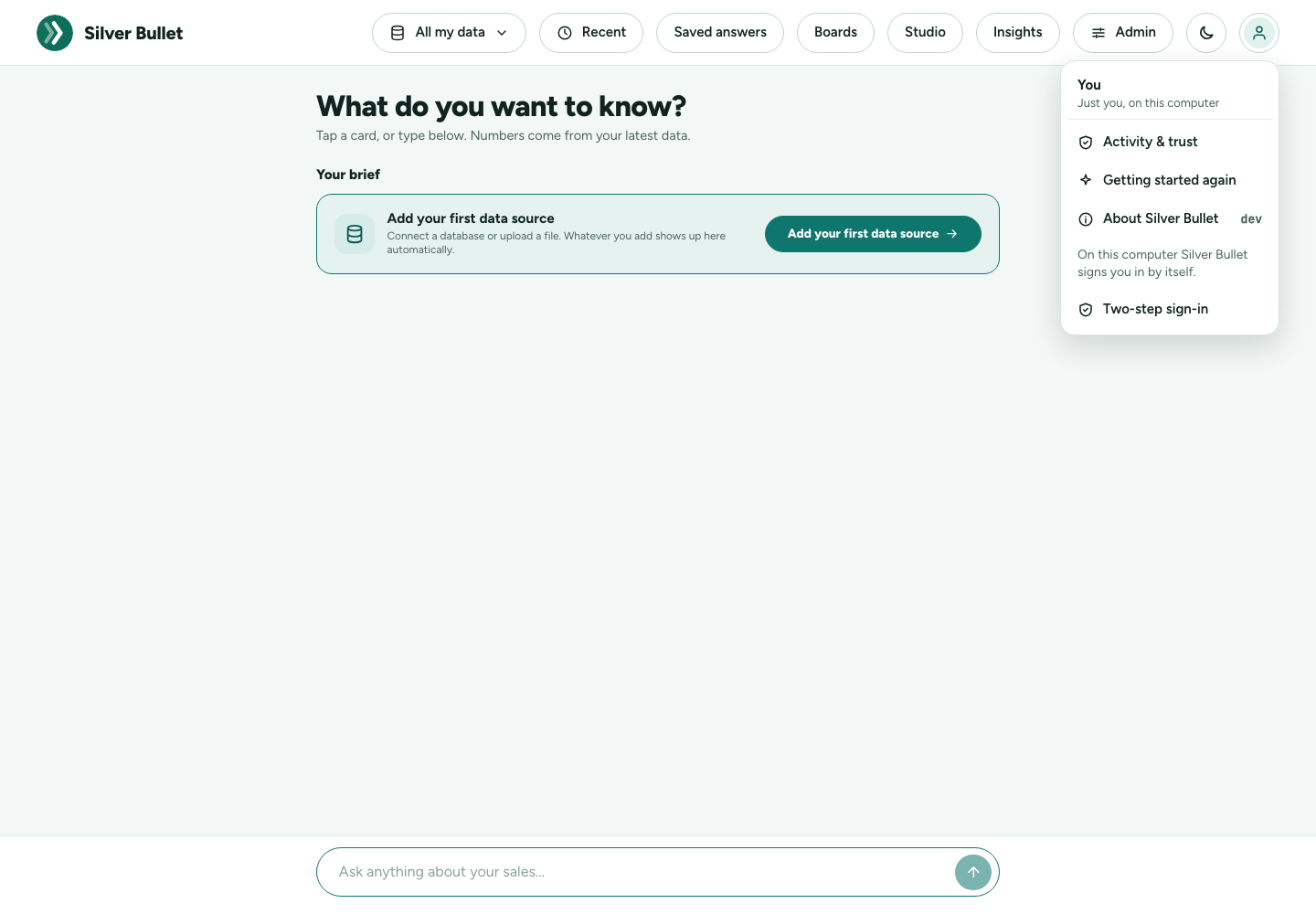
Your 14-day trial starts now (see Your licence). Next, set up the AI model (below) and add your first data source: Getting Started walks you through it.
The tray or menu-bar icon
| Item | What it does |
|---|---|
| Open Silver Bullet | opens it in your browser again, signed in |
| Show data folder | opens the data folder in Finder, Explorer or the file manager |
| (the version) | shows the version (greyed out; on a licensed build it adds “14-day trial, then a licence key”) |
| Quit Silver Bullet | stops it |
On a Mac the icon is in the menu bar; on Windows in the notification area (it may be behind the ^ arrow).
Stopping by itself
There is no window to close but the browser. Silver Bullet stops by itself about 90 seconds after its last page is closed, or 10 minutes after the last sign of life from any page (for example when the browser was killed). It does not stop in the first 10 minutes after it starts, so there is time to open it. A computer that went to sleep is not treated as a closed browser. Start it again whenever you like; nothing is lost.
SB_DESKTOP_IDLE_MINUTES changes the 10 minutes; 0 turns stopping by
itself off (then quit from the icon). See Settings.
Starting it from a terminal
Two options help on a computer without a desktop, or for support:
| Option | What it does |
|---|---|
-no-browser |
does not open the browser; prints the one-time sign-in link instead |
-no-tray |
no tray icon; the terminal is the window (Enter opens the browser, Ctrl+C stops) |
On a Mac, run the program inside the app:
"/Applications/Silver Bullet 3.app/Contents/MacOS/SilverBullet" -no-tray
SilverBullet version prints the version.
Your licence
Silver Bullet runs a 14-day trial of the whole product from its first
start on your computer. After that it needs a licence key (SBS2-… when
bought from inside the app, SBS1-… when issued by hand). A
licence is per computer: the key works on the computer it was issued
for. One licence includes every data-source plugin. The key is checked on
your computer itself, at start and every few minutes, with no connection;
only buying, a subscription’s monthly key, Get my key and moves contact
the licensing service.
To buy a licence (no account to make):
- In Silver Bullet, open Admin → Licence and press Buy a licence (also on the trial’s banner in its last days).
- Choose Monthly or Yearly (two months free). The price shown is your region’s (India ₹250 + GST a month; US$7, €8, £8, S$10 or A$10 + tax elsewhere); change it if you pay from another region. Outside India, tick I am buying for business use. There are no refunds once the key is delivered: try it during the trial first.
- Go to checkout opens Dodo Payments’ checkout in your browser (or pay from your phone with the QR code). Pay by card (or UPI in India).
- The key is shown on the thank-you page, e-mailed to you, and — unless you switched it off — installed by Silver Bullet itself within a minute. Otherwise paste it under Enter a licence key and press Use this key.
Lost the key, reinstalled, or moving to a new computer: Get my key and Move to this computer on the same page, with the order number and the e-mail you paid with. A key can always be pasted by hand, with no connection.
The code comes from the computer itself: reinstalling Silver Bullet or moving its data folder keeps it. Reinstalling the system or a new computer gives a new code: use Move to this computer. A key made for another computer is refused (SB3-6002).
When the trial or the licence ends, every page shows Licence needed
with a place to enter a key. Your data is never touched. The trial’s start
is also recorded outside the data folder, in your account’s own
configuration folder (as .sb3-installation), so deleting the data folder
does not start a new trial.
From a terminal, SilverBullet licence status prints this computer’s code
and the licence state, and SilverBullet licence activate SBS1-… enters a
key. A key bought online is checked with the licensing service at once,
as on the Licence page. If the service cannot be reached, the key is kept
with a note, and Silver Bullet checks it when it next starts. A running
Silver Bullet sees the new licence within a minute.
The computer’s code comes from the computer’s own id. If that id cannot
be read, nothing is licensed and every page says so (SB3-6011). This
happens on Linux inside unshare or a container made by an ordinary
user, and on a Mac started under sandbox-exec. Run Silver Bullet as a
normal program.
The AI model
Silver Bullet uses an AI model to read questions. By default it is a local model, run by Ollama on your computer:
| Model | What for | Setting |
|---|---|---|
qwen3-coder-next:latest |
reading questions (the model this release was measured with) | SB_MODEL |
nomic-embed-text |
matching new questions with verified answers by meaning (small, under 1 GB) | SB_EMBED_MODEL |
qwen3-coder-next needs about 64 GB of memory or a GPU with similar
memory. On a 16 GB computer, codestral:22b runs but is wrong more often.
Without the embedding model, questions are matched to verified answers by
words instead.
Installing Ollama and the models
-
Install Ollama from ollama.com (macOS and Windows: the installer; Linux:
curl -fsSL https://ollama.com/install.sh | sh). -
Pull the two models (the first is large; allow time):
ollama pull qwen3-coder-next ollama pull nomic-embed-text -
Check:
ollama listshows both.
Silver Bullet looks for Ollama at http://127.0.0.1:11434. Downloading the
models needs Ollama’s model library on the internet, once; answering
questions does not.
Ollama on another computer
If your computer is too small for the model, Ollama can run on a bigger
one on your network. There, make Ollama listen on a network address
(Ollama’s own OLLAMA_HOST setting). In Silver Bullet, enter its address
on Admin → AI model (or set SB_OLLAMA_URL). Port 11434 must then be
open from your computer to that one.
Another model, or a cloud provider
You can choose a different model in Admin → AI model: Ollama, LM
Studio, or a cloud provider (OpenAI, Anthropic, Google Gemini, Azure
OpenAI, Mistral) with an API key. Test connection checks it before you
save. What a cloud model receives is set out in
Security and Privacy. The local model
qwen3-coder-next and the cloud model Google Gemini 3.5 Flash-Lite were
measured with the Test Kit (figures in the Release Notes);
the other cloud models were not.
The SB_MODEL, SB_EMBED_MODEL and SB_OLLAMA_URL settings are the
defaults used until you save a choice on that page; after that, the page’s
choice is used.
Connecting to your databases
Silver Bullet connects from your computer straight to each database you add. Nothing is copied from the database: questions are answered by read-only queries, run where the data is.
What your computer must reach
- Each database’s server and port (PostgreSQL 5432, MySQL and MariaDB 3306, SQL Server 1433, Oracle 1521, unless the database uses another). On an office network this may need a firewall rule from your computer, or the VPN when you work from elsewhere.
- For SQL Server sign-in other than a SQL Server login: Microsoft Entra
ID (
login.microsoftonline.com, port 443), or Kerberos (the domain’s KDCs, port 88 TCP and UDP). A named instance also needs SQL Server Browser (port 1434 UDP). - The AI model: nothing when Ollama runs on your computer; Ollama’s host and port 11434 (or LM Studio’s, 1234) when it runs elsewhere; the provider’s HTTPS address (port 443) for a cloud model.
Admin → Network and firewall lists the connections your Silver Bullet makes, from its own data sources and AI model, so you can ask for any firewall, VPN or proxy change in one go. Check from here tries each connection from your computer and says, per row, connected or why not in words the network team can act on: the name does not resolve, refused (nothing listens, or a firewall rejects it), no answer within 5 s (a firewall drops it), or a certificate replaced by an inspecting proxy. It sends no password and no data. Download CSV and Copy as text give the request for a ticket or an e-mail.
A web proxy
If your computer reaches the internet through a web proxy, set
HTTPS_PROXY in the environment Silver Bullet starts from. HTTPS calls (a
cloud AI model, Microsoft Entra ID) then go through it, and Admin →
Network and firewall shows it and the host names it must allow. A proxy
that inspects TLS must not replace those hosts’ certificates, unless its
own CA is trusted by your computer. If you also set HTTP_PROXY, add the
address of an Ollama computer on your network to NO_PROXY.
Read-only database accounts
Silver Bullet only reads, and it insists on an account that cannot change
anything: Test connection reads the account’s privileges and refuses
one that can write. Create an account like these, or ask whoever manages the database to (choose
the names; … is the password). Give the account only what it needs to
read the tables you will ask about.
PostgreSQL
CREATE ROLE sb_reader LOGIN PASSWORD '…';
GRANT CONNECT ON DATABASE erp TO sb_reader;
GRANT USAGE ON SCHEMA sales TO sb_reader;
GRANT SELECT ON ALL TABLES IN SCHEMA sales TO sb_reader;
-- app_owner = the role that creates the tables; without FOR ROLE this
-- covers only tables created by whoever runs it, so new tables stay unreadable
ALTER DEFAULT PRIVILEGES FOR ROLE app_owner IN SCHEMA sales GRANT SELECT ON TABLES TO sb_reader;
MySQL and MariaDB
CREATE USER 'sb_reader'@'%' IDENTIFIED BY '…';   -- better: '%' = your computer's address
GRANT SELECT ON sales.* TO 'sb_reader'@'%';
GRANT SHOW VIEW ON sales.* TO 'sb_reader'@'%';   -- only if the schema has views
-- MariaDB 10.11+: anything granted TO PUBLIC applies to this login too
SHOW GRANTS FOR PUBLIC;
SQL Server (SQL Server login; for a Windows account or group use
CREATE LOGIN [DOMAIN\name] FROM WINDOWS, for Microsoft Entra ID
CREATE USER [name] FROM EXTERNAL PROVIDER in the database itself)
CREATE LOGIN [sb_reader] WITH PASSWORD = '…';
USE erp;
CREATE USER [sb_reader] FOR LOGIN [sb_reader];
GRANT SELECT ON SCHEMA::sales TO [sb_reader];
GRANT SHOWPLAN TO [sb_reader];  -- required: every query is compiled first (nothing runs) and checked
SHOWPLAN is required. Check also that public has no EXECUTE on
procedures and that the login is in no role that writes. A Windows group
login gives the rights of every group the account is in; the test checks
them all.
Oracle (connected to the pluggable database, not the root)
CREATE USER sb_reader IDENTIFIED BY "…";
GRANT CREATE SESSION TO sb_reader;
GRANT READ ON sales.customers TO sb_reader;   -- one line per table or view (READ, or SELECT)
-- 23ai / 26ai: a whole schema at once
-- GRANT SELECT ANY TABLE ON SCHEMA sales TO sb_reader;
-- Optional: lets the test report whether the database is open read-only
-- GRANT SELECT ON V_$DATABASE TO sb_reader;
No roles and no ANY privileges (other than the schema-level grant above). Give Silver Bullet the PDB’s service name, not a SID.
Where your data is
| Data folder | |
|---|---|
| macOS | ~/Library/Application Support/SilverBullet3 |
| Windows | %LOCALAPPDATA%\SilverBullet3 |
| Linux | ~/.local/share/silver-bullet-3 (or $XDG_DATA_HOME/silver-bullet-3) |
Show data folder in the icon’s menu opens it. Each person on a shared
computer has their own folder. To use another folder, set the environment
variable SB_DATA_DIR before starting Silver Bullet.
Inside:
| Path | What |
|---|---|
app.db |
your data sources, the dictionary, rules, questions and answers, boards, the audit trail, settings (SQLite) |
vault.key |
the key that seals data-source passwords and API keys: keep it with app.db |
files/files.duckdb |
the files you loaded |
results/ |
the temporary result area (cleared at start and stop) |
backups/ |
the automatic backups |
logs/silverbullet.jsonl |
the log (JSON lines; 10 MB per file, five old files kept) |
licence/ |
the trial and licence state, and this installation’s id |
running.json |
the running copy’s port, while it runs |
open-….html |
the page that forwards the browser to its one-time sign-in link; deleted a minute later |
silverbullet.env |
your settings, if you made the file (below) |
The program itself is wherever you installed it; it holds none of your data.
Settings
Silver Bullet needs no settings. To change one (the model, the limits,
stopping by itself), make a text file silverbullet.env in the data
folder and start Silver Bullet again. It holds KEY=value lines. A line
starting with # is a comment, and so is # … after a value; quotes
around a value are removed (inside quotes # is kept). A leading
export is allowed. A value that cannot be read stops Silver Bullet at
start, with a message naming it. An environment variable of the same name
wins over the file.
For example:
SB_MODEL=codestral:22b
SB_DESKTOP_IDLE_MINUTES=30
These are the settings that apply:
| Setting | Default | What it does |
|---|---|---|
SB_LOG_DIR |
— | Where the logs are written. Default: logs/ in the data folder. |
SB_OLLAMA_URL |
http://127.0.0.1:11434 |
The Ollama server used until an administrator saves another model on the AI model page. |
SB_MODEL |
qwen3-coder-next:latest |
The model on that server that reads questions. Example: or codestral:22b on a 16 GB machine. |
SB_EMBED_MODEL |
nomic-embed-text |
The model on that server that matches questions to verified answers by meaning (without it, by words). |
SB_MAX_UPLOAD_BYTES |
209715200 |
Largest file that can be uploaded, in bytes (default 200 MB). |
SB_RESULT_TTL_MINUTES |
60 |
The temporary result area: minutes an answer’s rows are kept after they were last used (changing a chip or opening the table within that time does not query the data source again). |
SB_RESULT_MAX_MB |
512 |
The temporary result area: the most all kept results may take on disk, in MB (the least recently used go first). |
SB_BACKUP_HOURS |
24 |
How often Silver Bullet backs itself up, in hours: a consistent copy of app.db, vault.key and the loaded files (files/files.duckdb) into backups/ in the data folder, while it keeps running. 0 = no automatic backup (Back up now, under Health and logs, still works). |
SB_BACKUP_KEEP |
7 |
How many backups are kept (at least 1); the oldest beyond this are removed after each new one. |
SB_DESKTOP_IDLE_MINUTES |
10 |
The desktop edition stops by itself this many minutes after its last page closed; 0 = never. |
Silver Bullet always listens on 127.0.0.1 and picks its own port, so the address settings have no effect here. Two more are read from the environment only:
| Setting | What it does |
|---|---|
SB_DATA_DIR |
Another data folder (set it before starting Silver Bullet). |
SB_ALLOW_NEW_VAULT_KEY |
Set to 1 for one start, to start with a new vault key on purpose (see Backups and restore). |
The AI model can also be changed in the product, on Admin → AI model.
Backups and restore
Silver Bullet backs itself up every 24 hours (SB_BACKUP_HOURS) while it
runs, into backups/ in the data folder, keeping the newest 7
(SB_BACKUP_KEEP): consistent copies of app.db, vault.key and the
loaded files. Admin → Health and logs → Backups shows the last one and
has Back up now. The backups are on the same disk as the data: copy
the newest backup folder to other storage regularly (any backup tool can
take the backups/ folder). The Administration Guide
explains what a backup holds.
app.db and vault.key belong together: the saved database passwords and
API keys in app.db can only be opened with the vault.key of the same
folder. A backup holding both can open them, so keep backups as safe as
the passwords themselves.
To restore a backup:
- Quit Silver Bullet (Quit Silver Bullet in the icon’s menu).
- In a terminal, run
SilverBullet restore <backup folder>(on a Mac,"/Applications/Silver Bullet 3.app/Contents/MacOS/SilverBullet" restore <backup folder>). A backup folder is namedsilverbullet3-backup-…. - Start Silver Bullet again.
What the data folder held is moved aside to backups/before-restore-<time>,
not deleted. These copies are listed under Health and logs → Backups →
Before each restore (and on the Manager’s Backups page), each with
Delete; the newest two are always kept, older ones are deleted by
themselves after 30 days. A whole copy of the data folder, made with Silver Bullet
stopped, also restores by putting it back.
If vault.key is missing but app.db holds saved passwords, Silver Bullet
refuses to start and says so: restore the vault.key that matches that
database. Only if it is truly lost, start once with the environment
variable SB_ALLOW_NEW_VAULT_KEY=1: a new key is made, and every
data-source password and API key must then be entered again.
Upgrading
To upgrade, install the new version over the old one. Your data folder is not part of the program, so everything in it is kept.
- Quit Silver Bullet (Quit Silver Bullet in the icon’s menu).
- Install the new version:
- With the install command: run it again. It fetches the newest
package and replaces the program it installed before, once the
installed copy has checked the new package’s signature (
SilverBullet verify-package <unpacked folder>; versions before 3.0.0 cannot, and the SHA-256 check alone is done). If the check fails, nothing is changed. The installed copy also refuses a package that is older than itself, that is for another computer or for the server, or that belongs to another release line (for example a test release). Files a desktop leaves beside a package (._*,.DS_Store,Thumbs.db,__MACOSX) are deleted before the check and are never installed. On a Mac, the app must be named Silver Bullet 3.app. - From the zip: replace the app (macOS),
SilverBullet.exe(Windows) orSilverBullet(Linux) with the new one, at the same place.
- With the install command: run it again. It fetches the newest
package and replaces the program it installed before, once the
installed copy has checked the new package’s signature (
- Start Silver Bullet.
The new version updates app.db by itself at start. You cannot go back
just by starting the older program: it refuses a database a newer one has
updated (“the database is version …, newer than this program …: run the
newer version or restore a backup”). The install command does not go back
either. To go back, restore a backup taken before the upgrade, together
with the older program from its zip. Before a large
upgrade, press Back up now first.
Silver Bullet Suite 2 on the same computer
Silver Bullet 3 does not import from Silver Bullet Suite 2: it starts with an empty data folder, and Suite 2 is not touched. Both can be installed on one computer at once; nothing is shared:
| Silver Bullet Suite 2 | Silver Bullet 3 | |
|---|---|---|
| Port | 8920 | 8930 |
| Data folder | SilverBulletSuite / silver-bullet-suite |
SilverBullet3 / silver-bullet-3 |
| Settings | SBO_* / SBS_* |
SB_*, silverbullet.env |
| Trial marker | .sbs-installation |
.sb3-installation |
A Suite 2 trial does not use up Silver Bullet 3’s. In Silver Bullet 3, add your data sources again (each database with its read-only account, and each file through Add files), describe your data in the data dictionary, and choose the AI model.
Uninstalling
- Quit Silver Bullet.
- Delete the program:
- macOS:
Silver Bullet 3.app(from Applications). - Windows: the folder you unzipped, or, after the install command,
%LOCALAPPDATA%\Programs\SilverBullet3and the Silver Bullet 3 shortcut in the Start menu’s Programs folder. - Linux: the folder you unzipped, or, after the install command,
~/.local/opt/silver-bullet-3and~/.local/bin/silverbullet.
- macOS:
- Optionally delete the data folder (see Where your data is). This deletes everything: your sources, loaded files, the dictionary, your questions and boards. Back it up first if you may need it.
The trial marker in your account’s configuration folder, and the trial
record for the whole computer (macOS /Users/Shared/.silverbullet3,
Windows %ProgramData%\SilverBullet3, Linux /var/tmp/.silverbullet3),
are left behind on purpose. Do not delete them during the trial: the
trial then ends at once. A licence key still works.
Getting help
Help with installing and using Silver Bullet is community support: these
guides (also in the app, under Help) and the community forum. We answer
e-mail about licences and payments only, at [email protected]; there is
no telephone support. When you ask for help, have ready: the version
(SilverBullet version, or the icon’s menu), your operating system, and
the file from Admin → Health and logs → Send to support → Save the file (the
logs with passwords and keys removed, the record of the last 30 days'
changes and the environment report). The
Troubleshooting Guide says what else helps.